Whereby for teacher
0. Must use google Chrome
- If you don't have google Chrome browser, you can download use this link.
- https://www.google.com/intl/en/chrome/
1. Apply an account
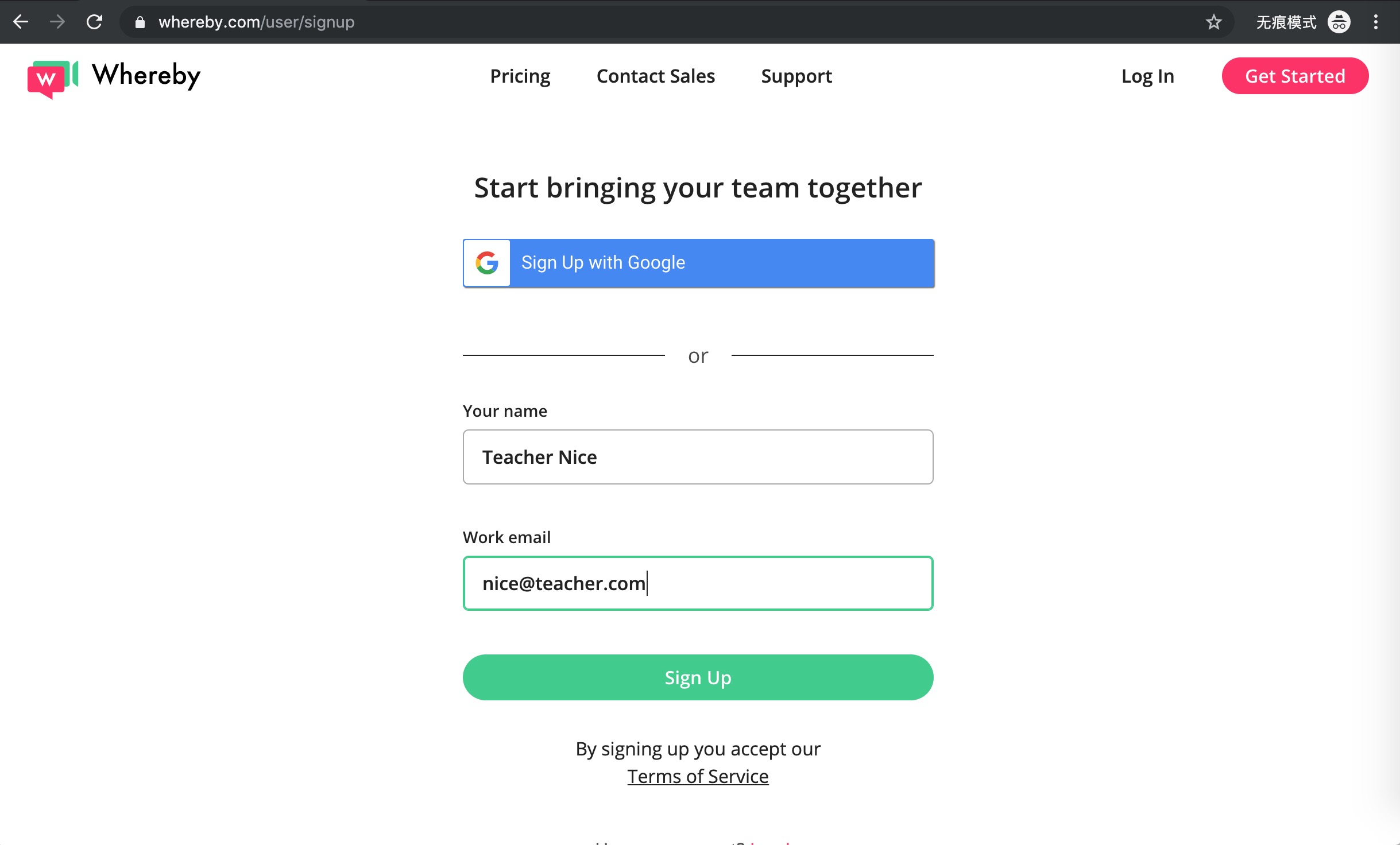
1.1 Sign up link
1.2 Your Name
- Use Teacher ??? As your name which is the same as zoom teacher name.
1.3 Your Email
- Use your own email is ok.
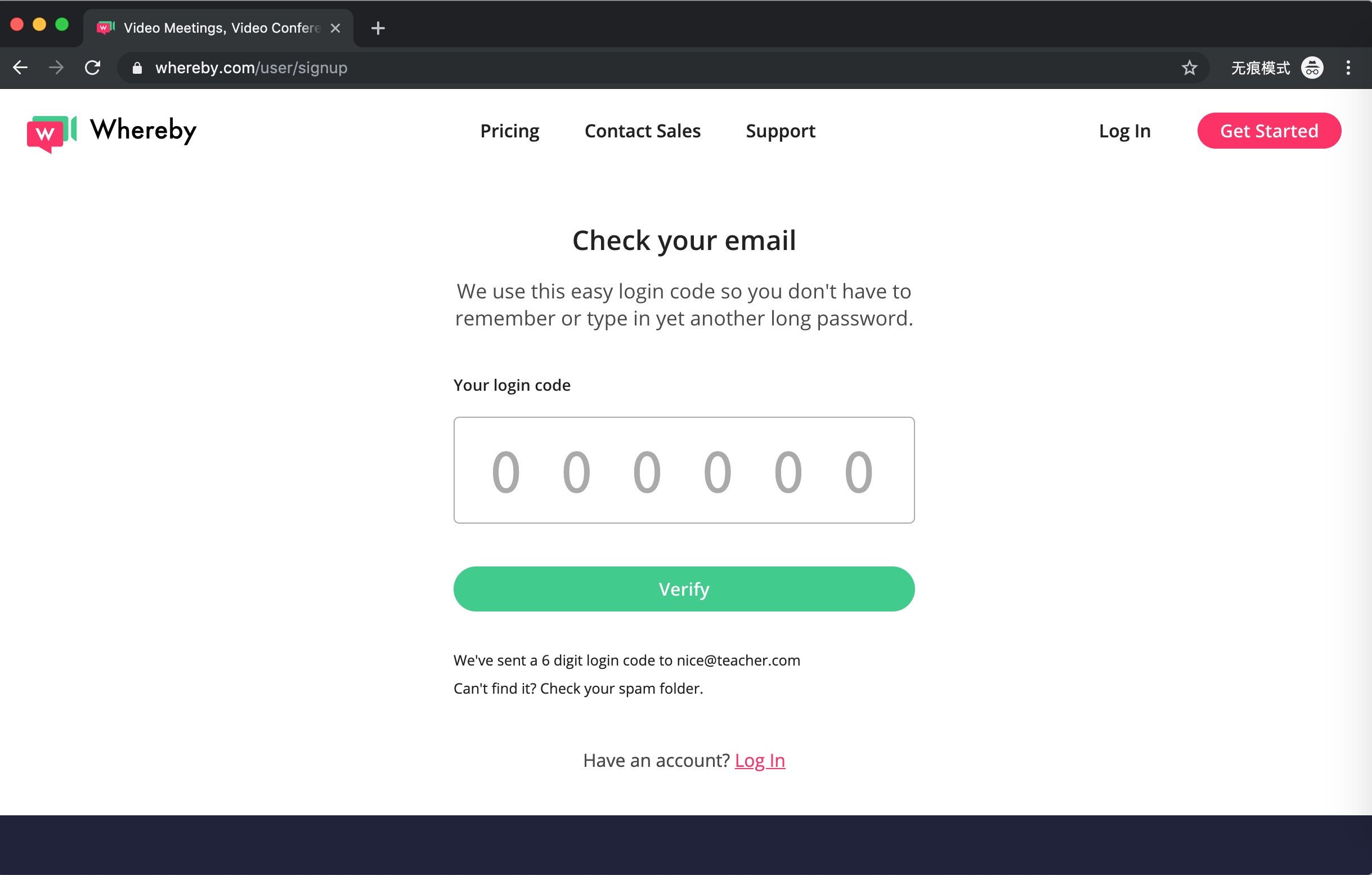
1.4 Check your email
To get a login code.
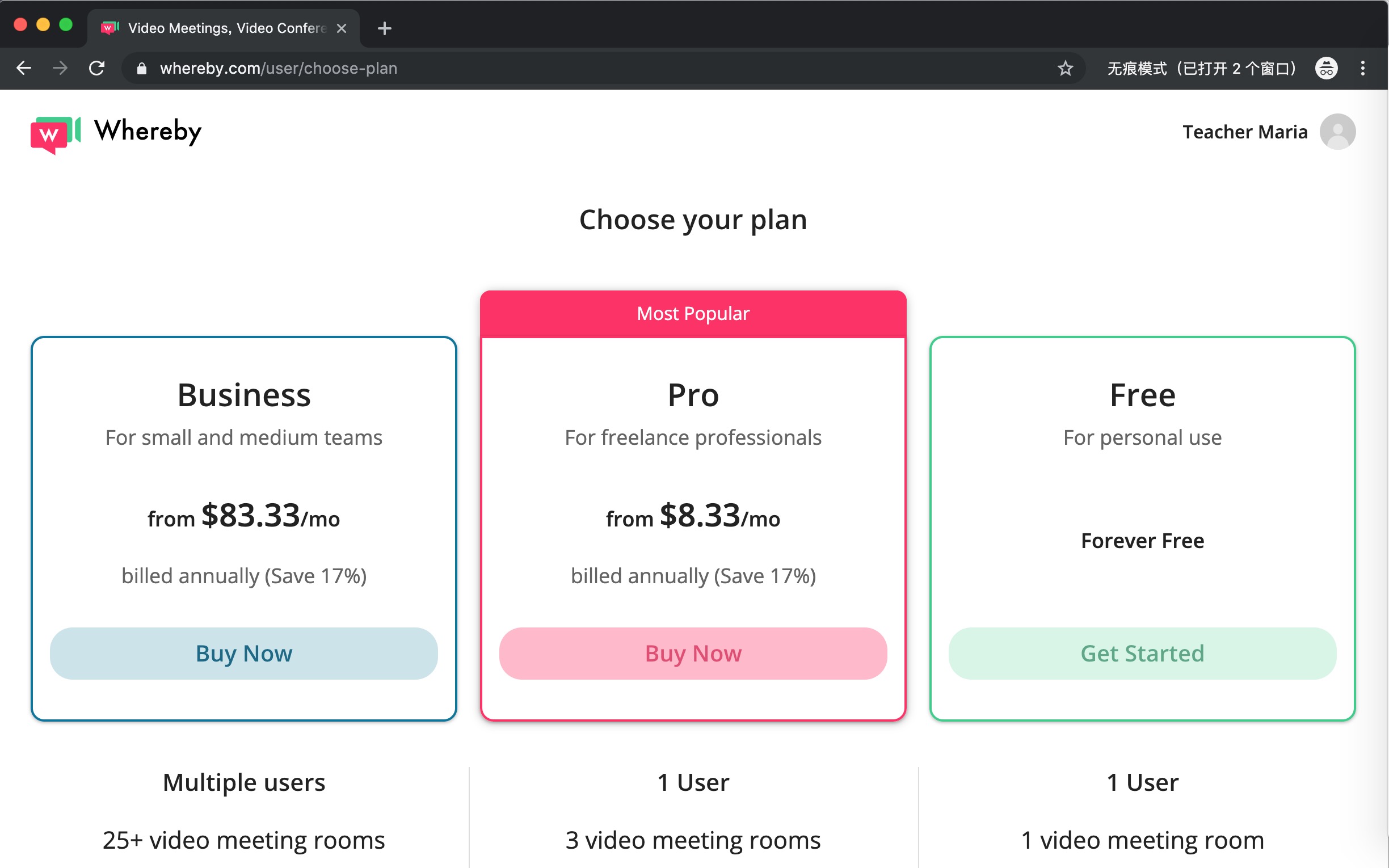
1.5 Free > Get Started
- After you login click Free plan to Get Started
1.6 Set room name *
- Input your zoom PMI as your room Name. then click Create My Room
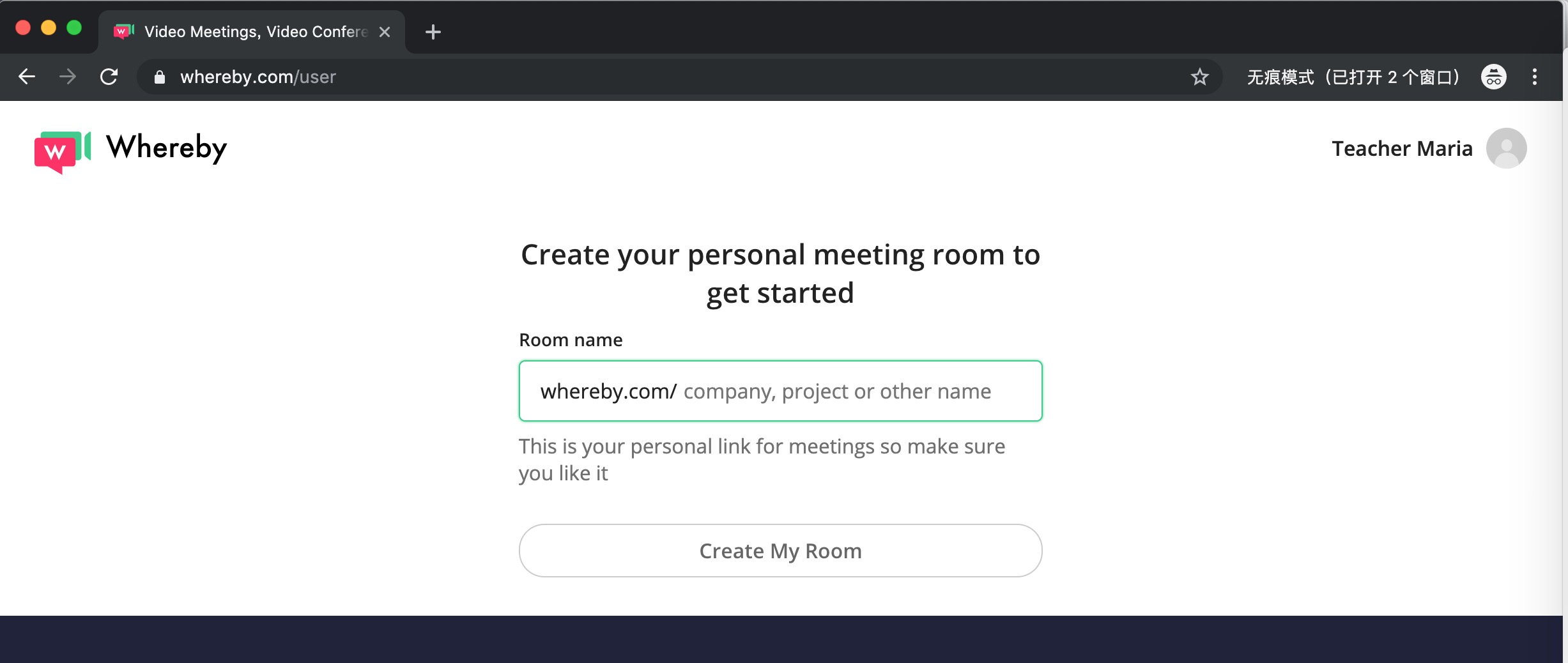
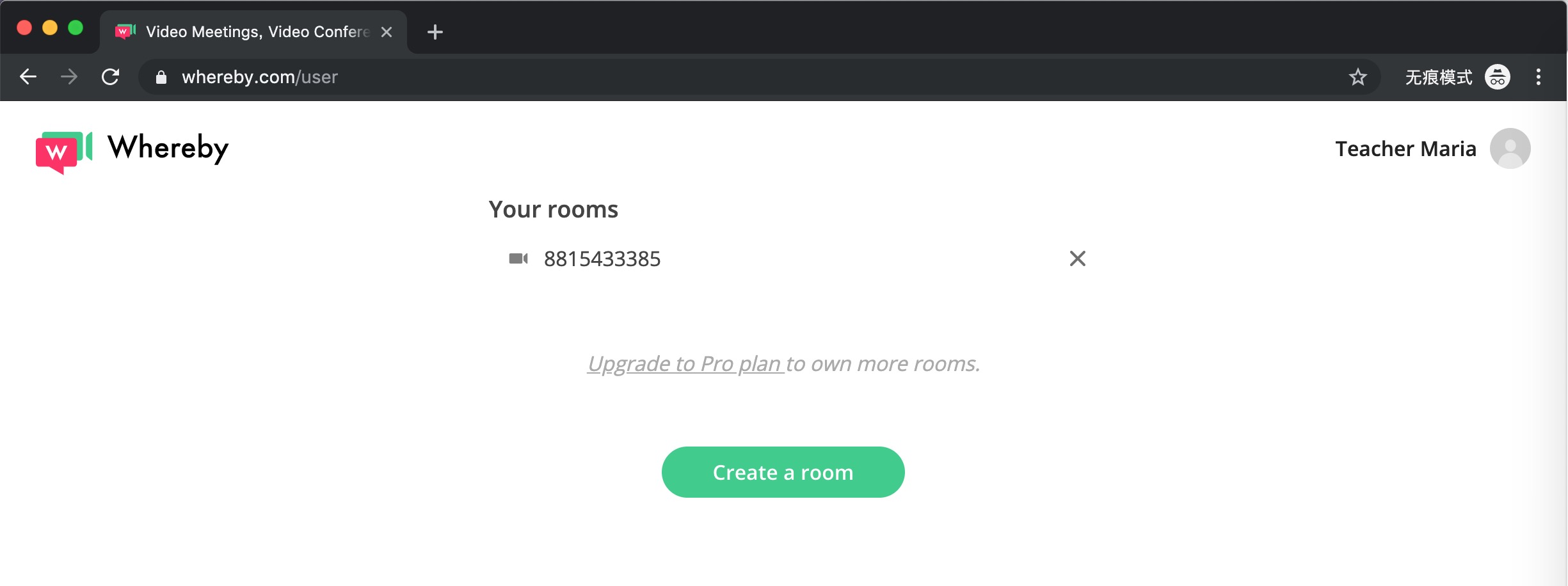
- Then you'll get your classroom link like this: https://whereby.com/123456789
2. Join the class
2.1 Join by Link
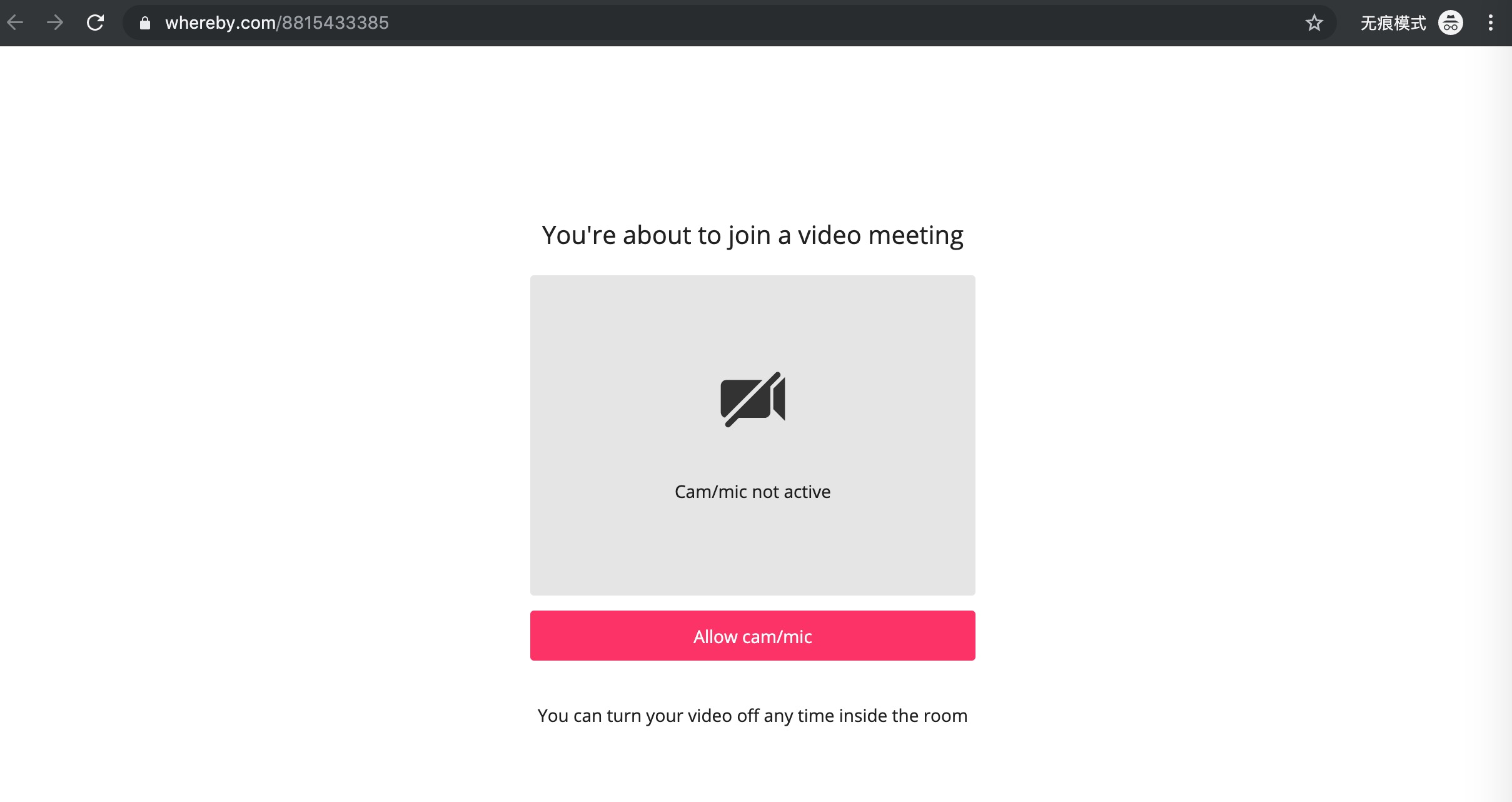
- Just click the link blew or direct input https://whereby.com/123456789
2.2 Allow Cam/mic
Click Allow Cam/mic
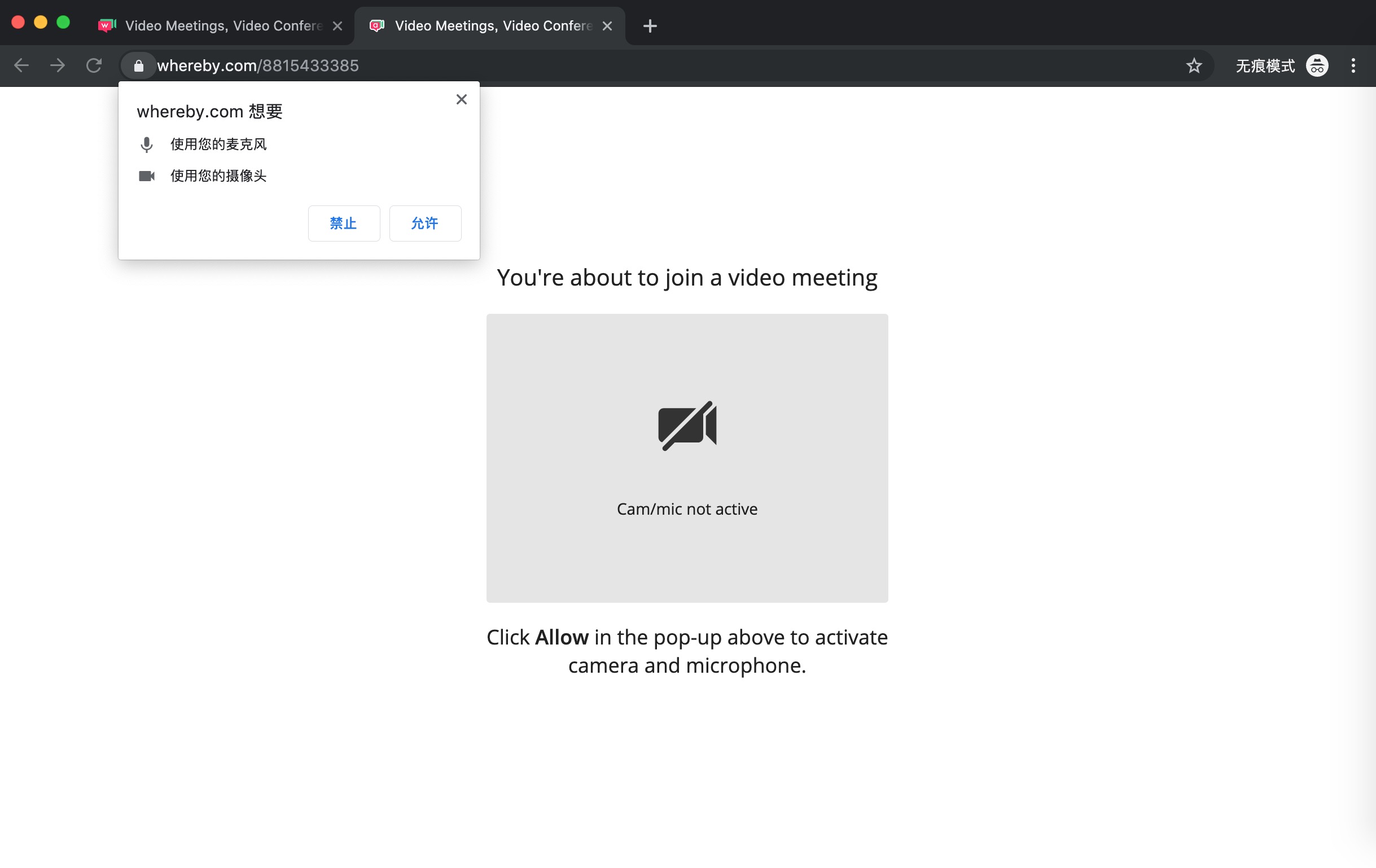
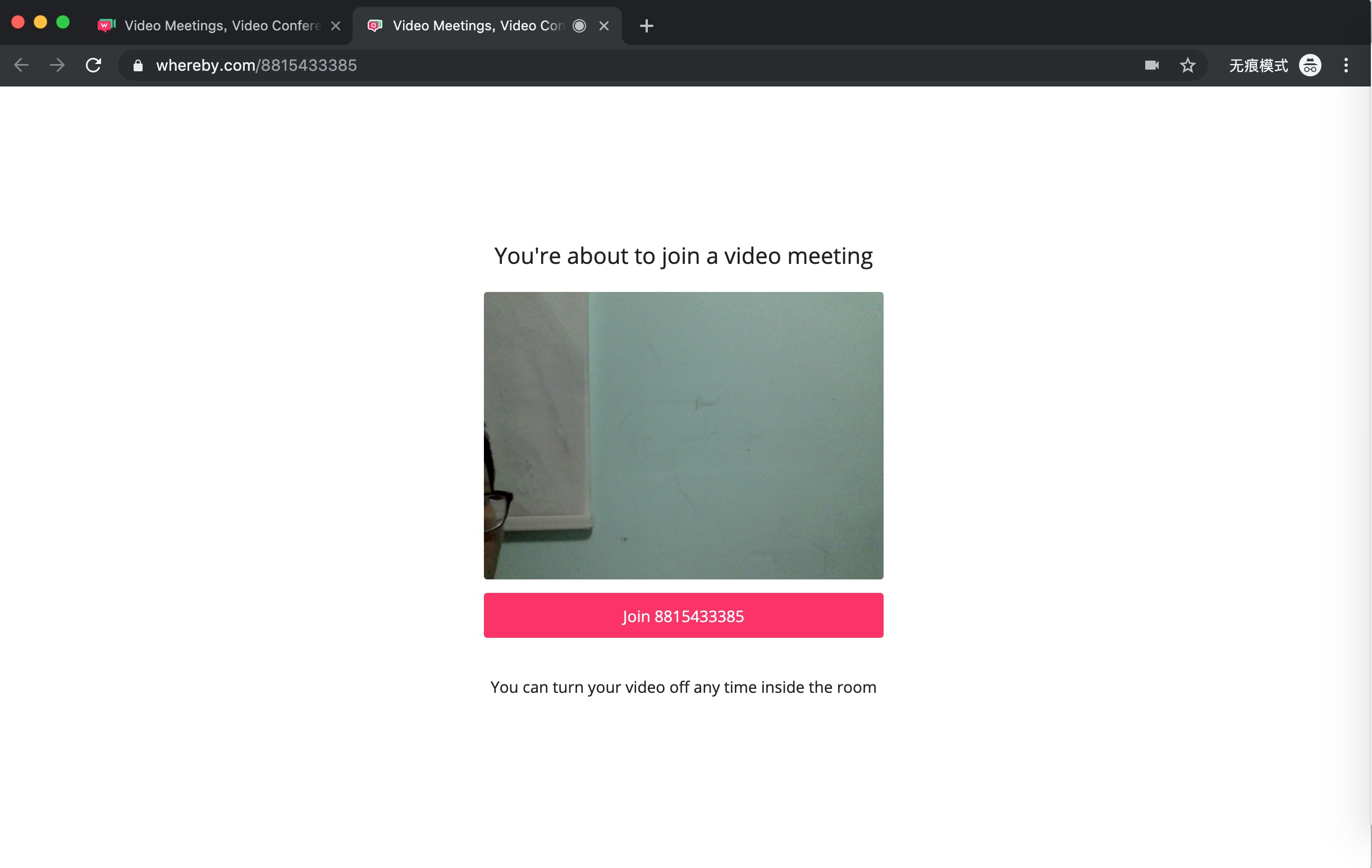
If the windows pop up click "Allow" then you will now see yourself.
2.3 Afterwards click "Join Idxxxx"
3.Meet the control

4. Share Your Entire Screen or
- Open a pdf/word/ppt/link first on your computer.
- Click Share Screen then choose the 2 Application window or 3 Chrome Tab you opened in pdf.
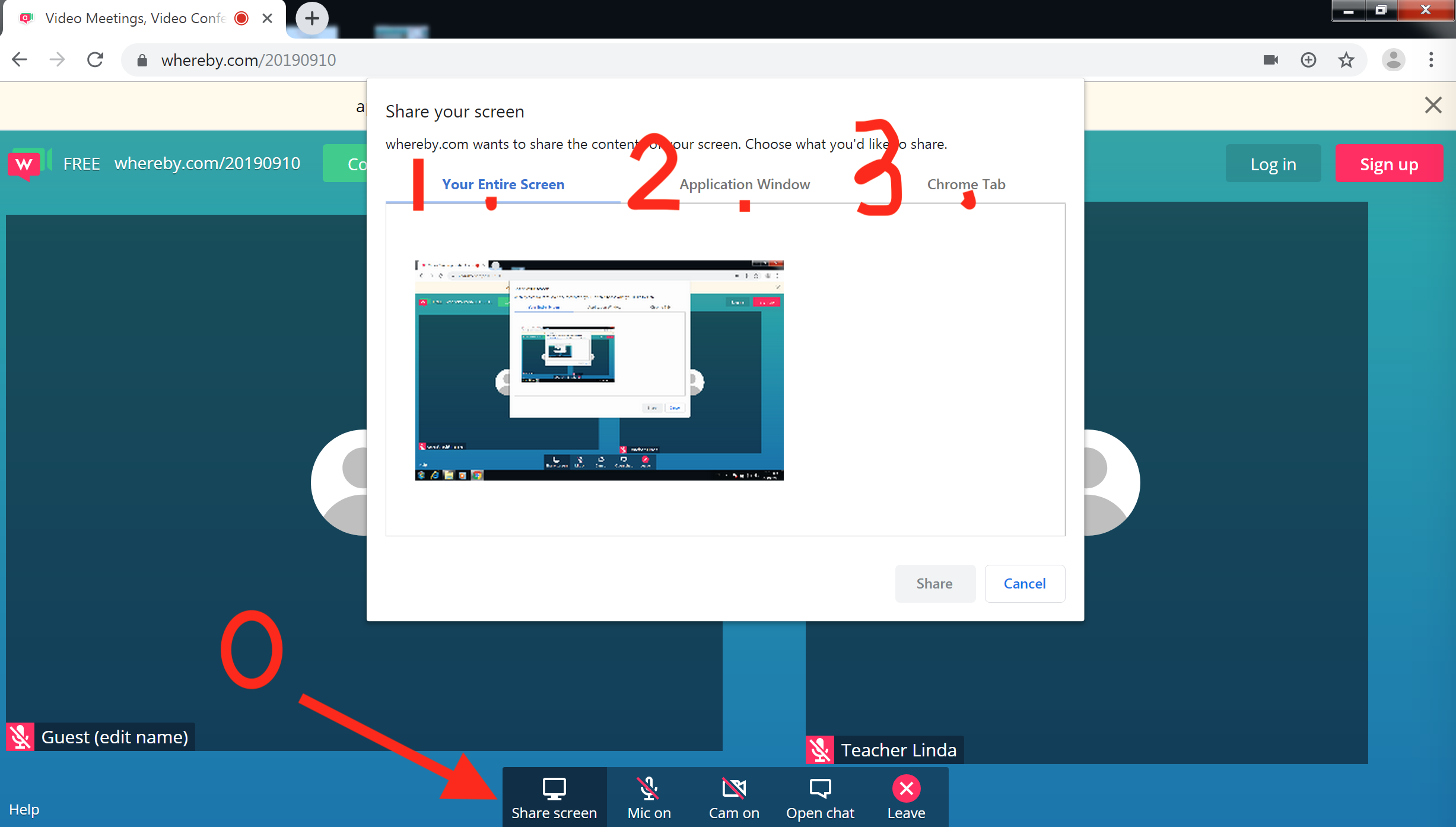
- Click Share Screen then choose the 2 Application window or 3 Chrome Tab you opened in pdf.
5. Open Chat
- Click Open Chat
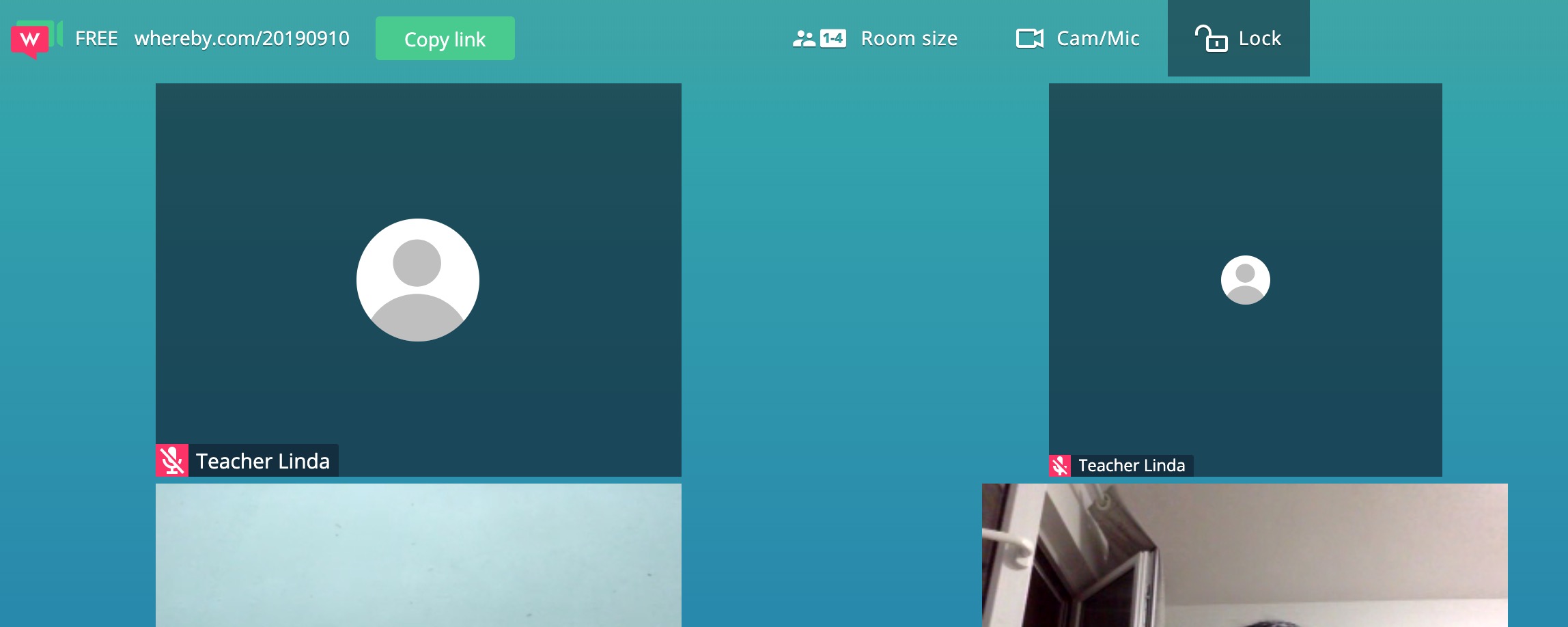
6. Lock
- In case Guest join, you can click the Lock after your student join in.
- Don't Lock until your student join in.
- Let Monika join in anytime.
7. Remove Guest
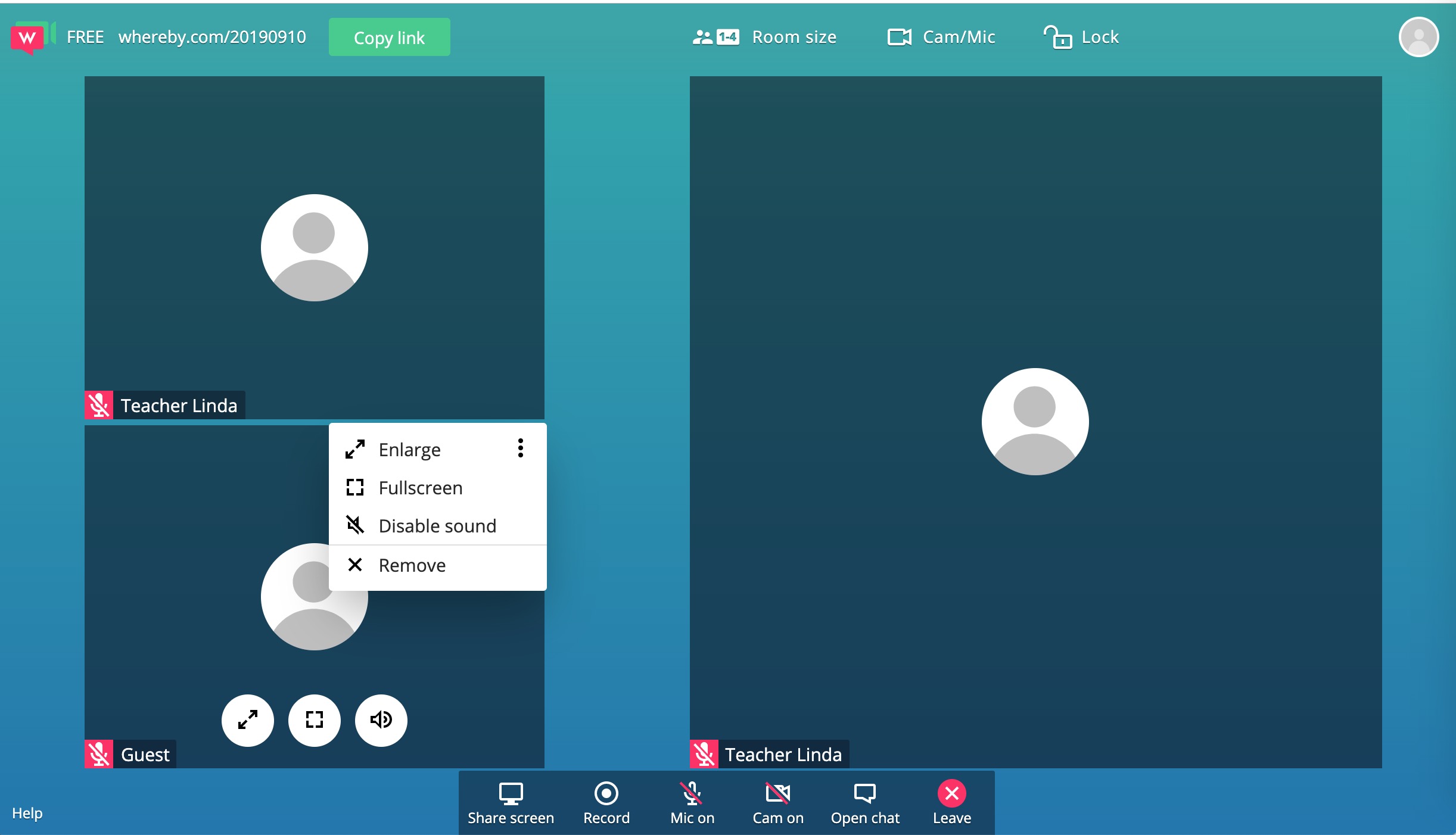
- If Guest enters while you are having class, you can remove by clicking the top-right of the Guest.
8. End Class
- Never click Leave button before you remove the Student, after you remove you can click now the Leave.
9. Record
9.1 Download
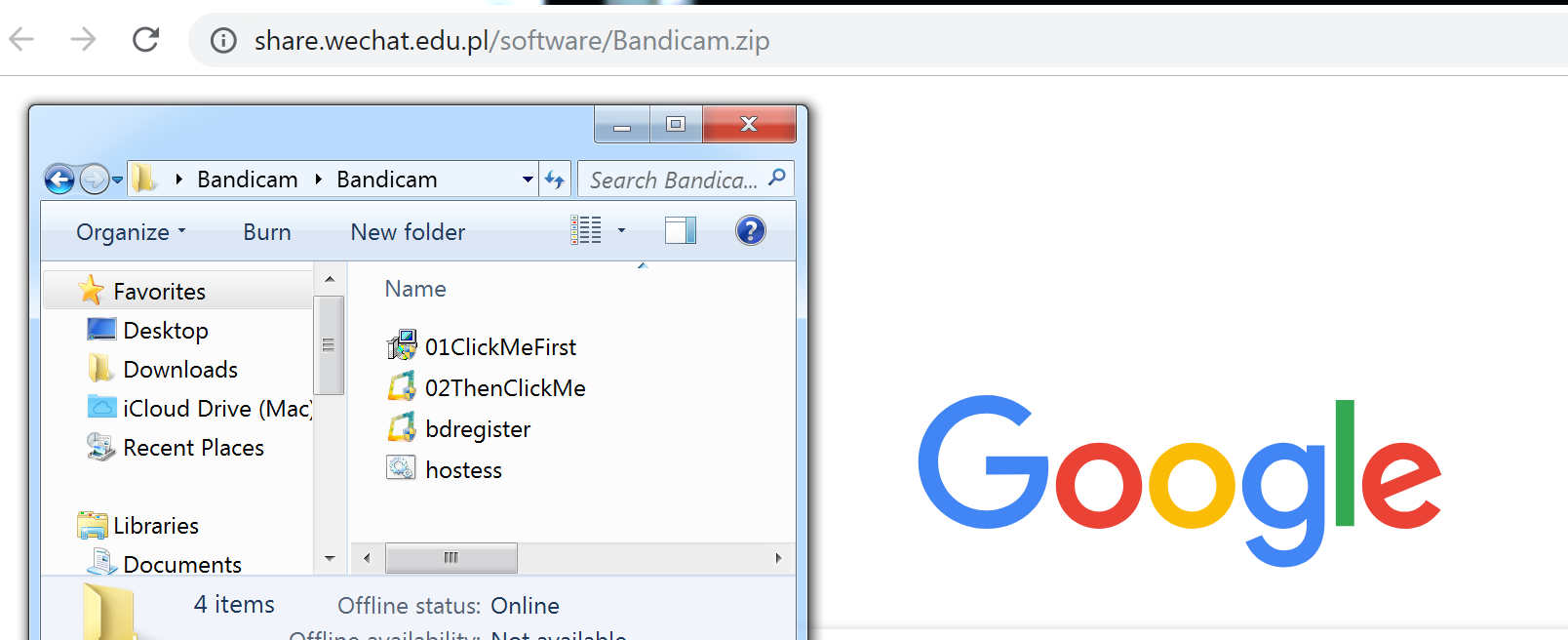
- Download link: http://share.wechat.edu.pl/software/Bandicam.zip
- After download, unzip the Bandicam.zip file. you'll see like blew.
9.2 Install
- Click the 【01ClickMeFirst.exe】then step by step to install (keep all settings default)
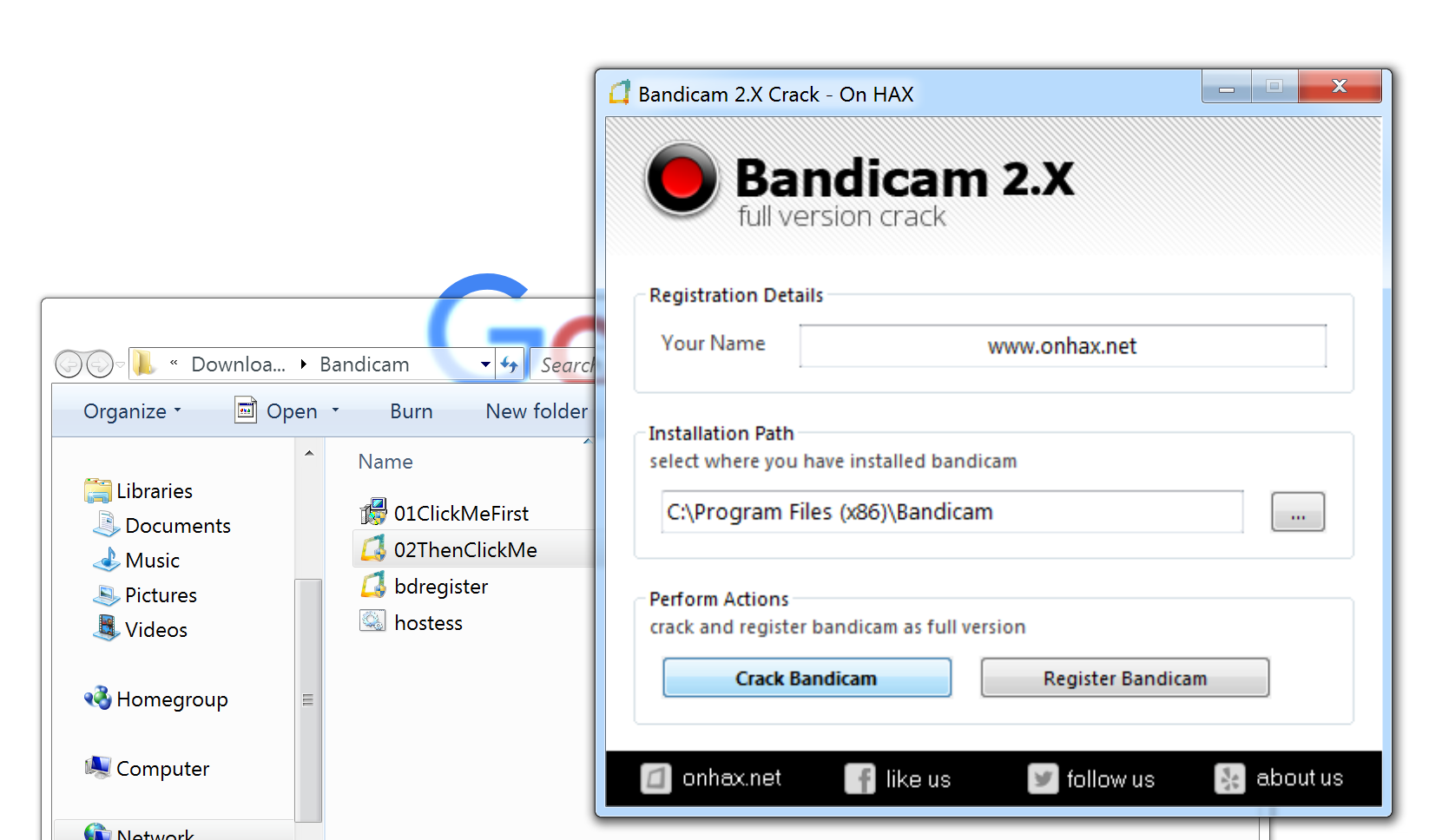
9.3 Crack
- Click the 【02ThenClickMe.exe】then click the button **Crack Bandicam ** button
- If you're fails, maybe you installed avast software, you need disable for a while or uninstall it.
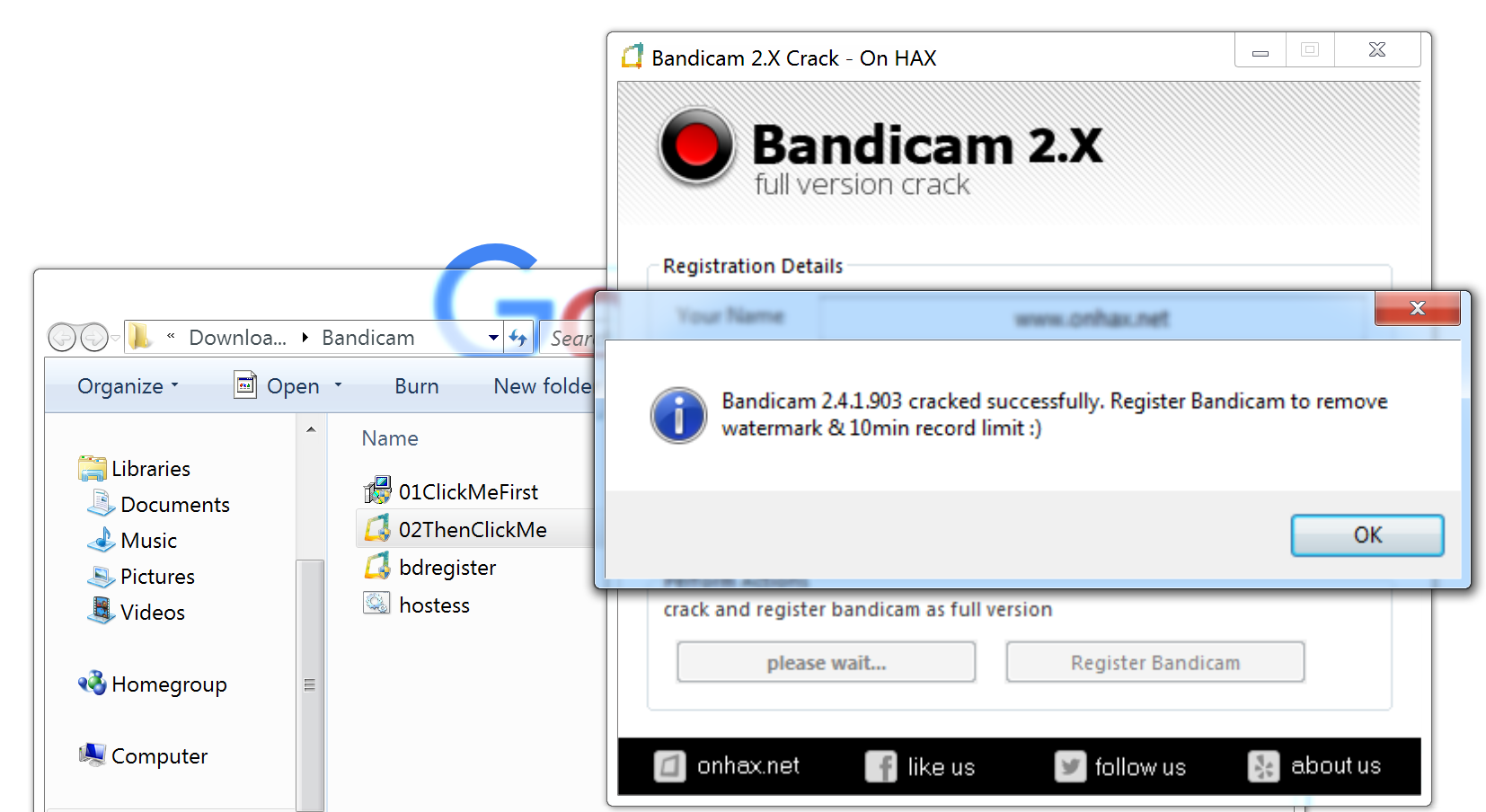
- Then see the success message, clike "OK"
9.4 Meet Bandicam
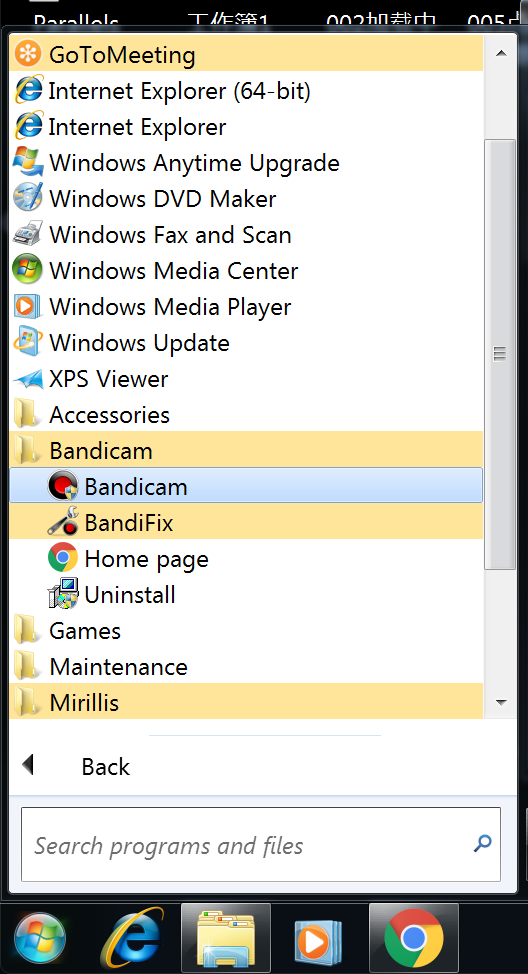
Open All Programes from your windows then select the folder, click the first one Bandicam
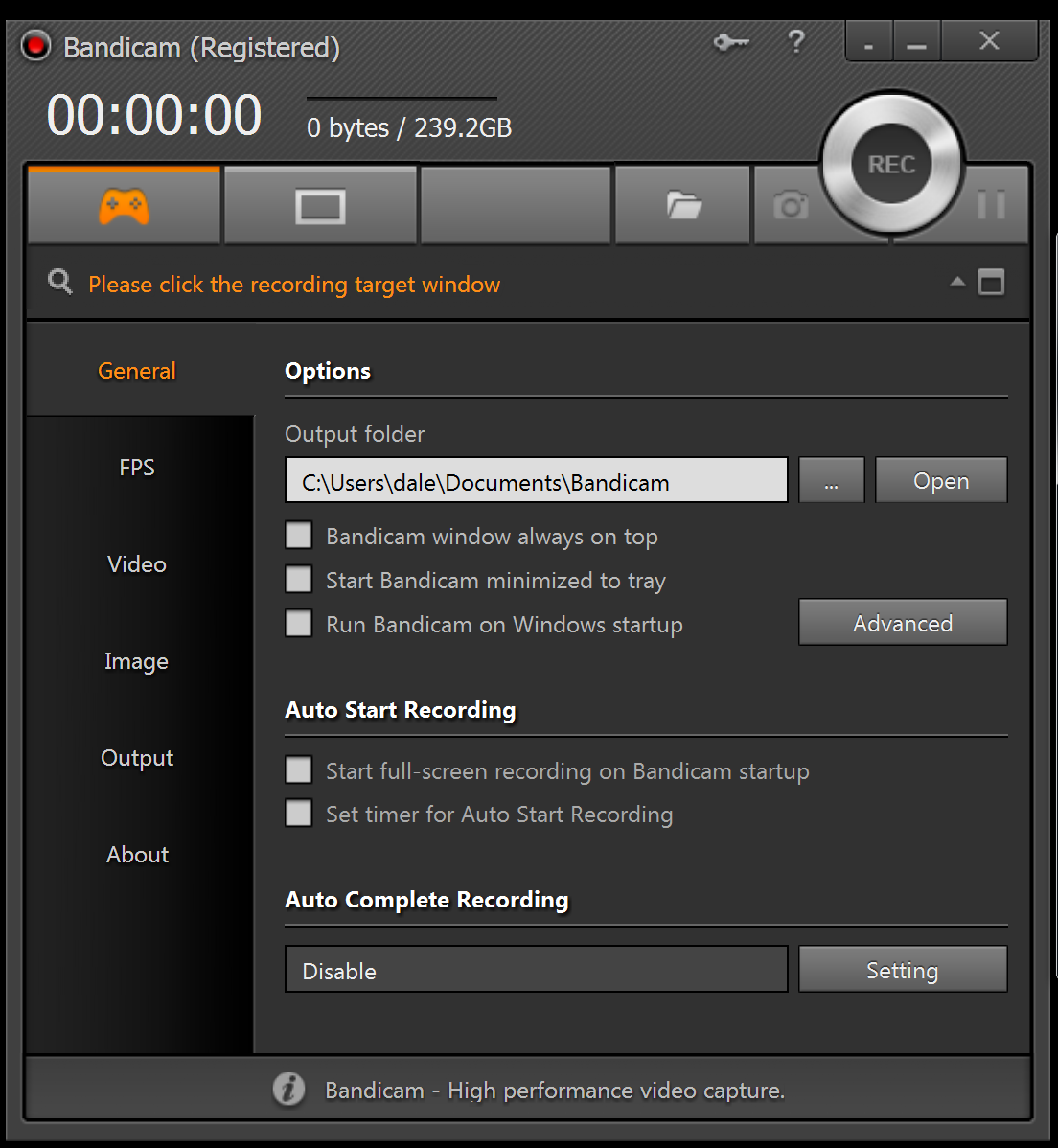
Here you go. see the big REC button and the Pause || button ?
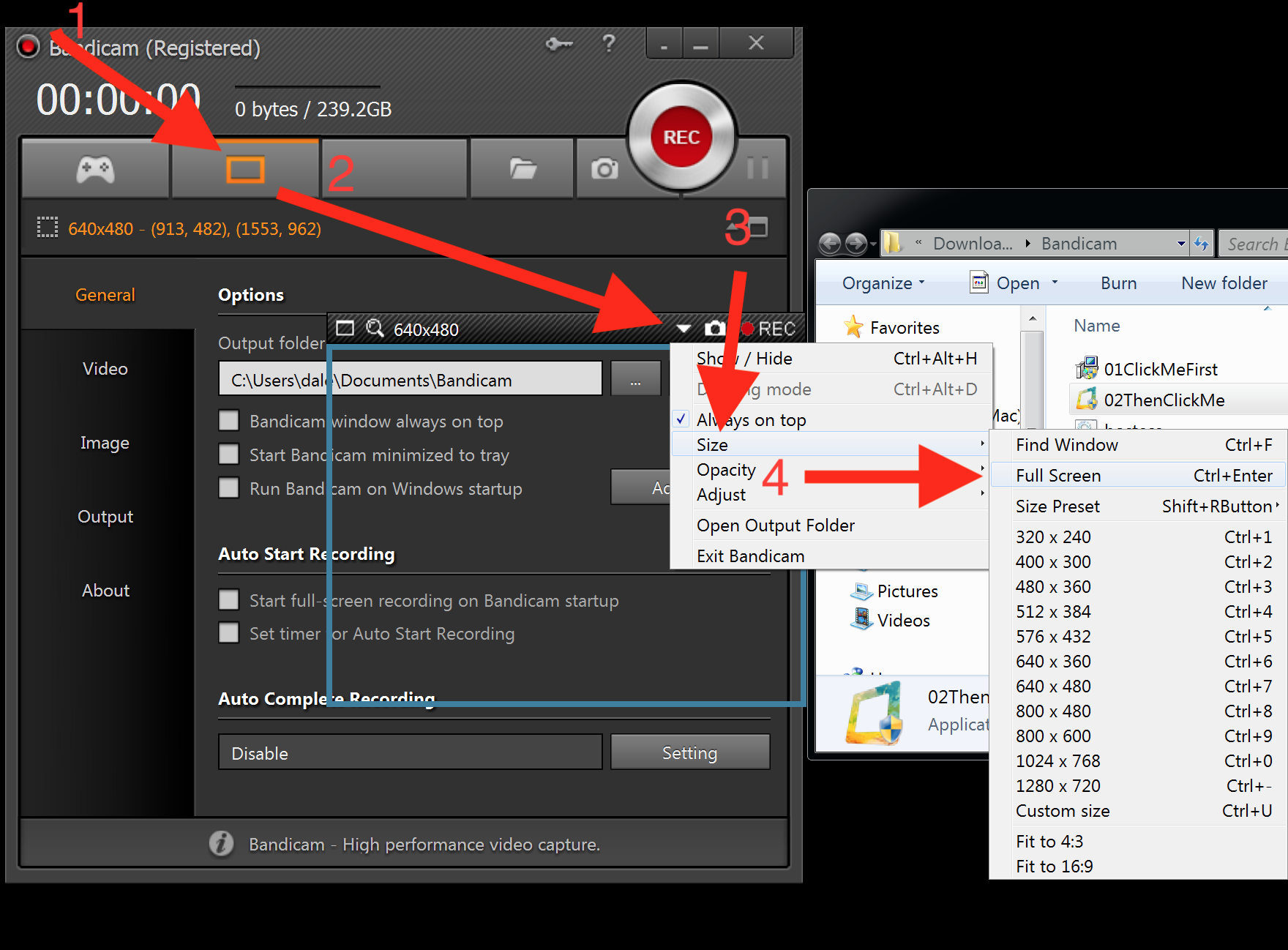
9.5 Setting record area
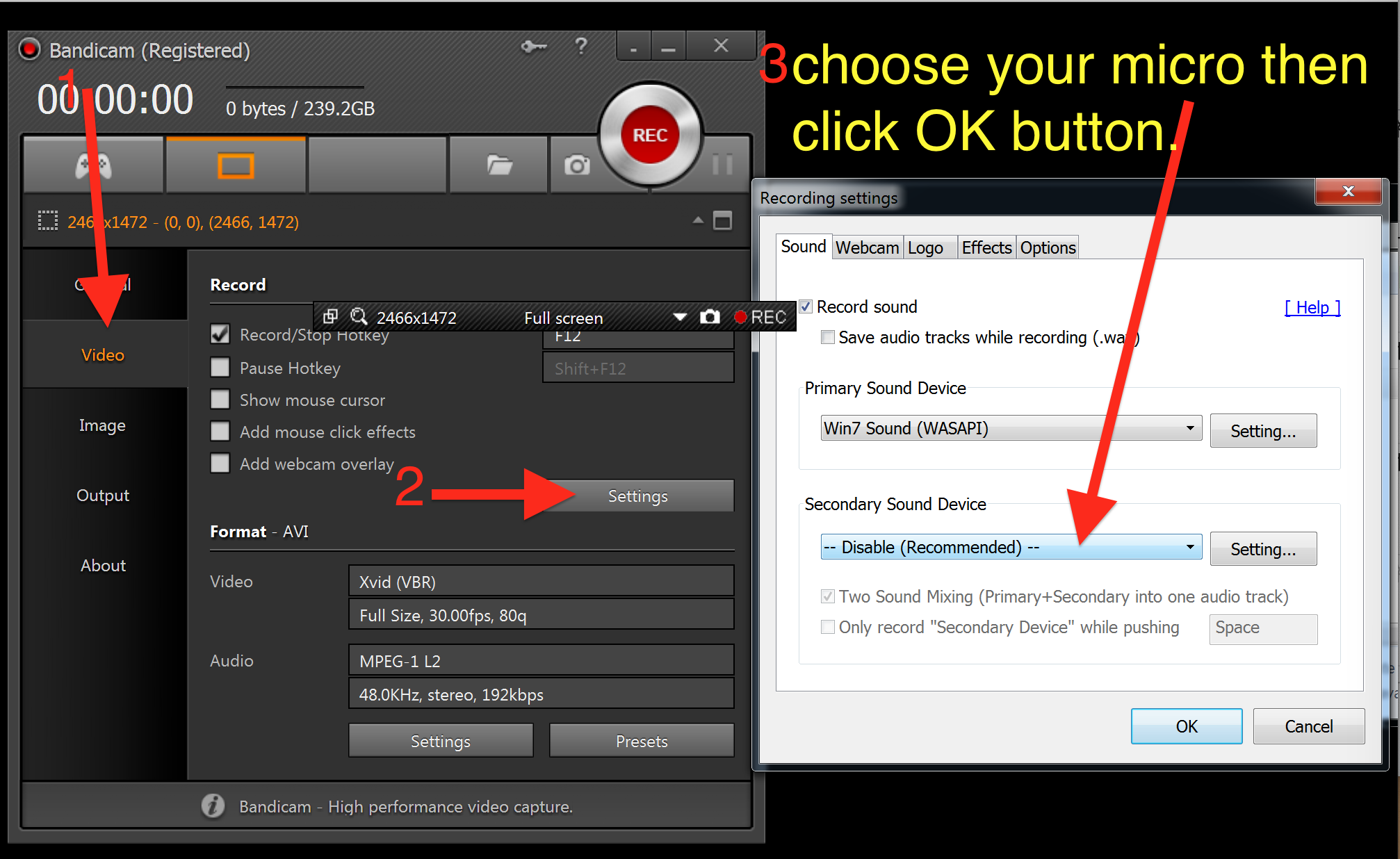
9.6 Setting Microphone
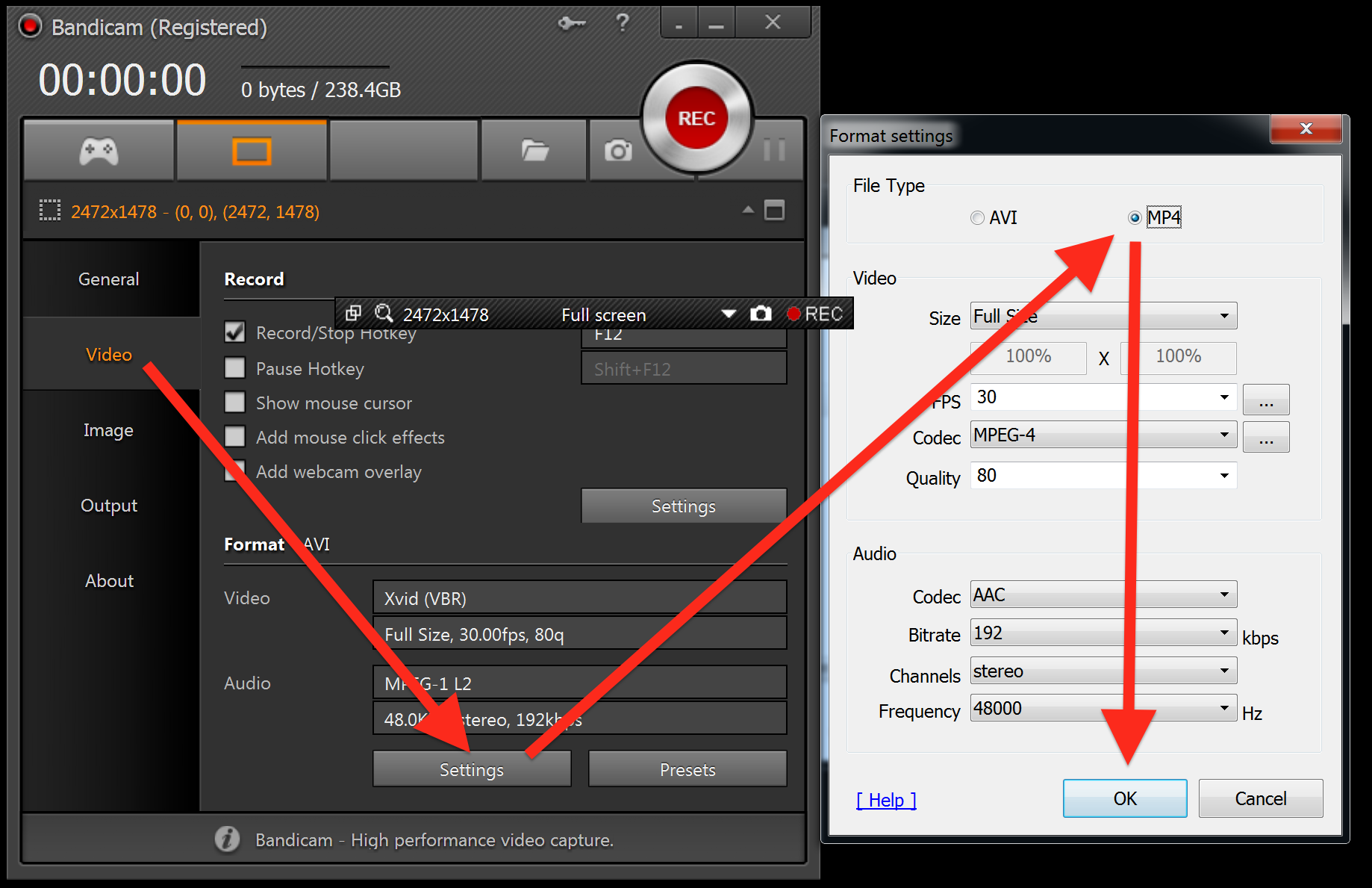
9.7 Setting Mp4
Instead of using the deault avi format, we need change to mp4.
9.8 Update/Upgrade
- Never Update/Upgrade this software or you'll need reinstall & do step 1-7
10. FAQs
10.1 How to Change Room ID?
- Don't Change it unless you're told set a wrong ID
- the ID must same as your zoom ID: 9391632951
- a wrong ID example: 939-163-2951
- don't with -
- To change your Room Name/ID.
- remove first by click X
- then you'll see
- remove first by click X
10.2 How to unzip?
- Double click the zip file then drag to a folder or select a folder.
- Or https://www.google.com/search?q=how+to+unzip+a+file