LMS
1. Login
we'll provide LoginName(which usually is your email or telephone number with +63) and password.
In the Captcha, you need input 31 in below picture for example.
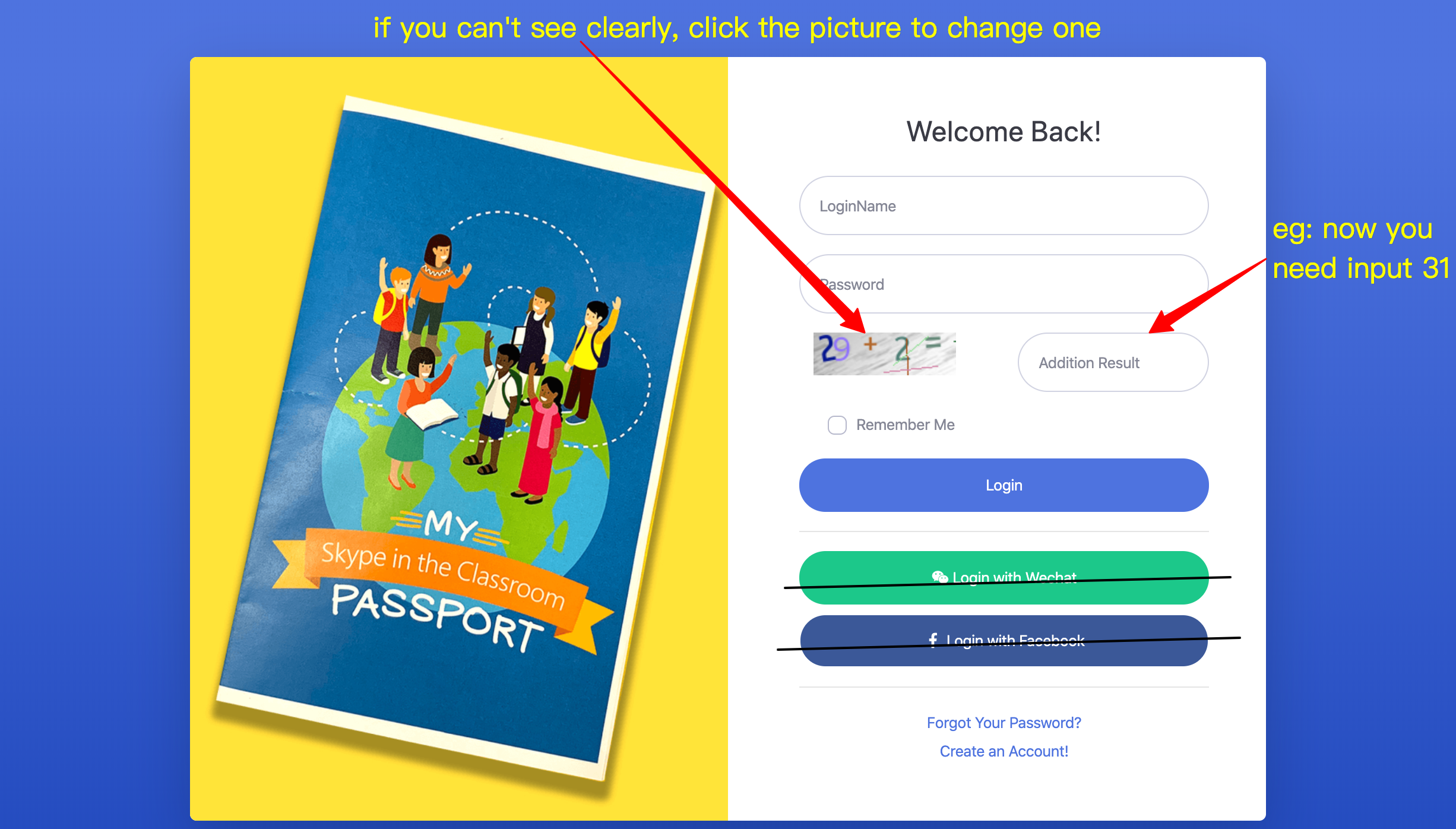
Still can't sing in? Screenshot the error to IT support plz.
2. ClassRecords
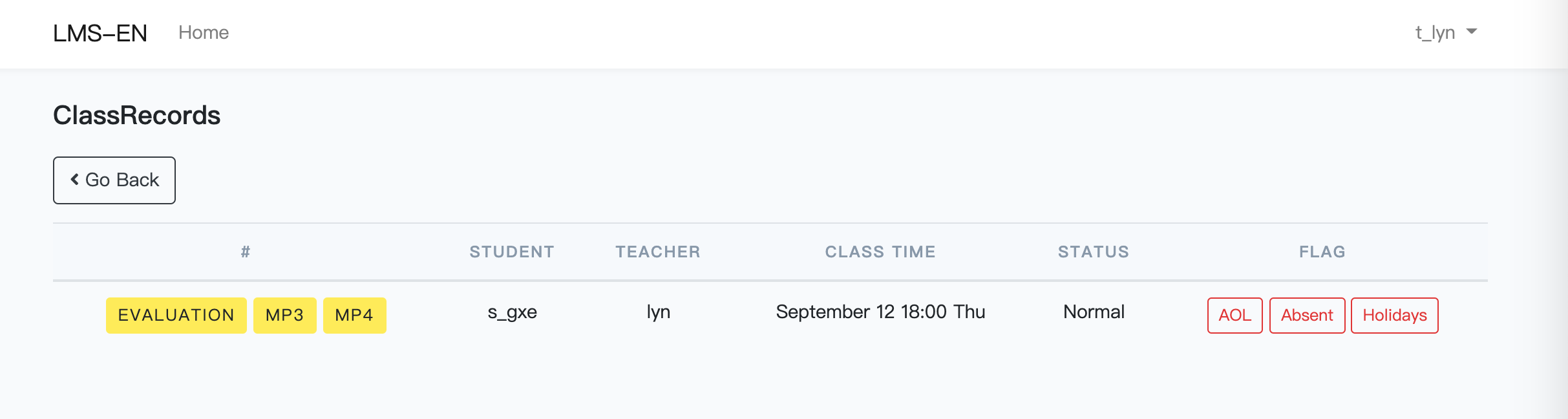
After login the LMS, you'll see all your ClassRecords.
3. Evaluation
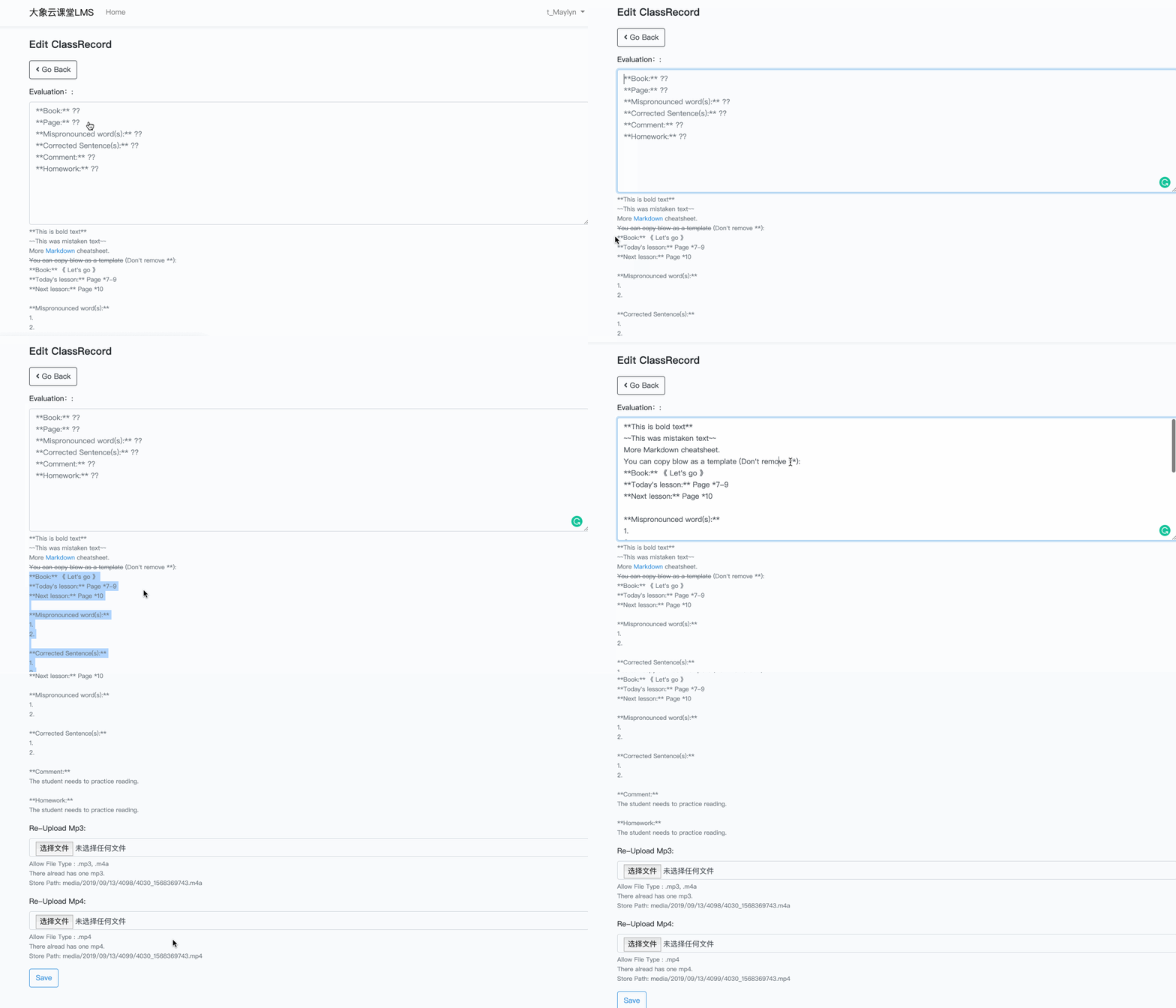
Click the yellow EVALUATION button to write your class evaluation with the template under EVALUATION: (For the zhumu test evaluation, just copy the template is ok)
You can fill this page while having class, but don't share all your screen/desktop.
If you use Chrome to open pdf for share, you need another Browser Or You can also use a keyboard shortcut to open an Incognito window: Windows, Linux, or Chrome OS: Press Ctrl + Shift + n.
4. Upload records
There are 2 ways (4.2, 4.3) below you can choose to follow to upload the records.
4.1 where are the records?
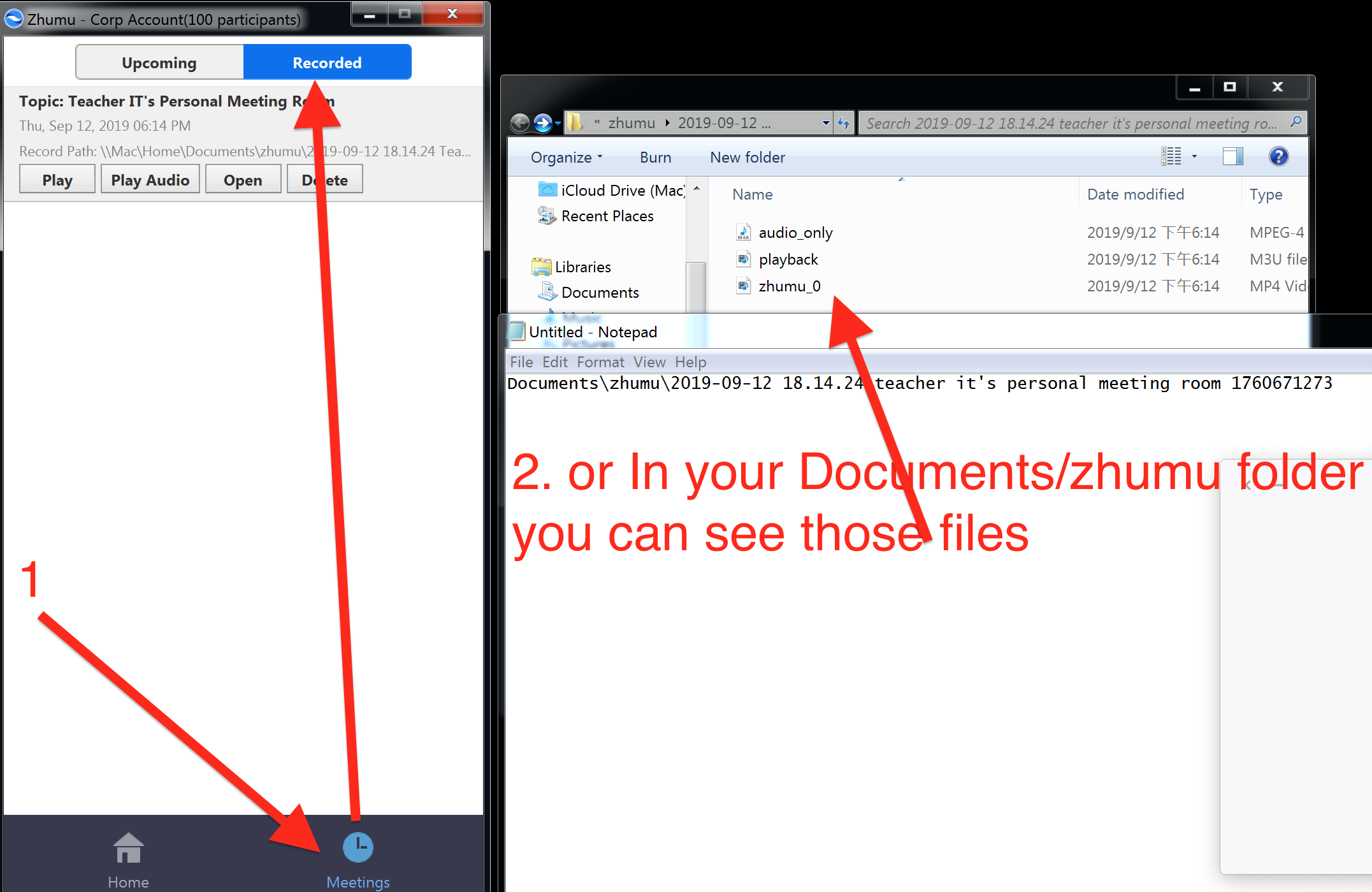
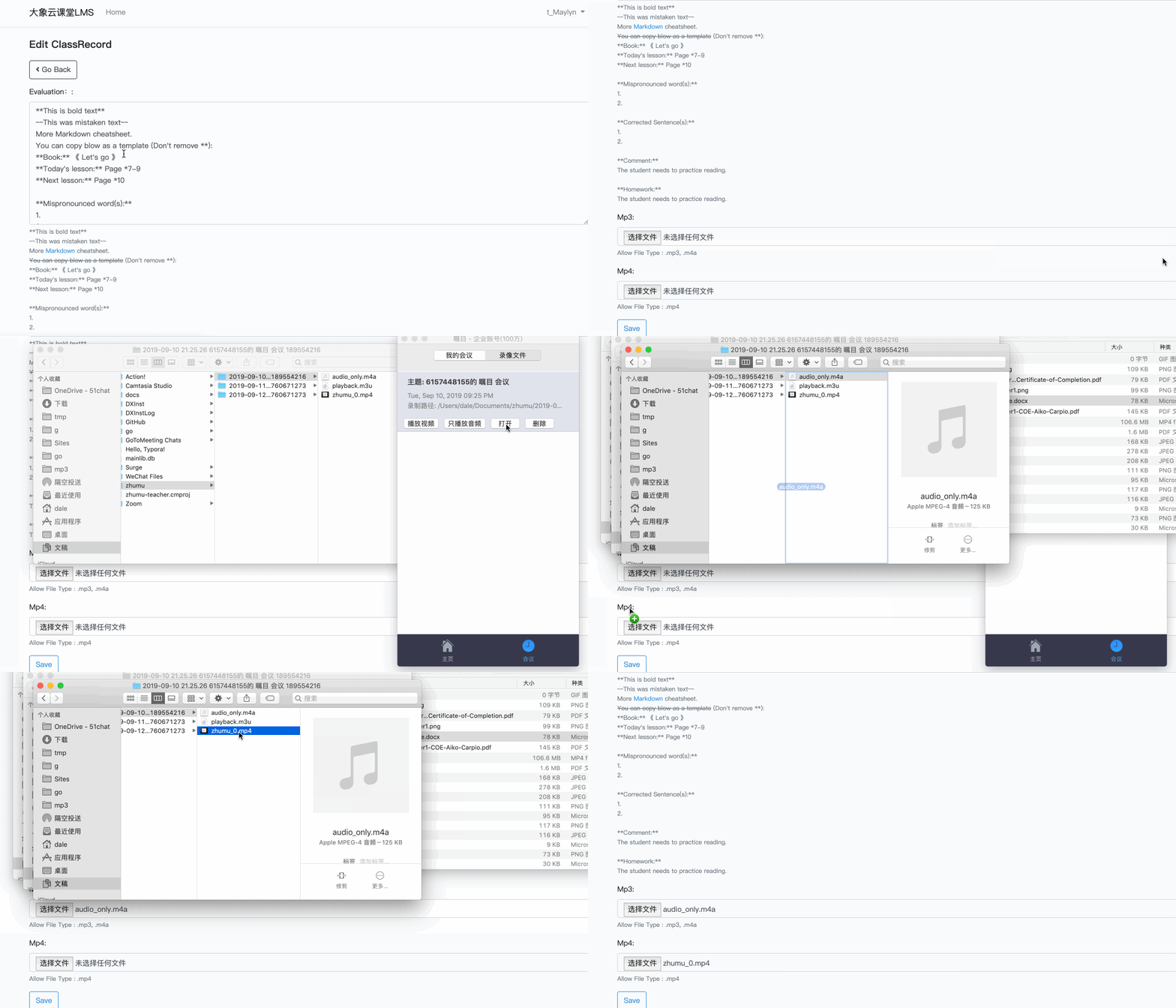
Here is wher Recorded located.
audio_only(.m4a) is the mp3/audio file.
zhumu_0(.mp4) is the video file.
4.2 Upload by drag
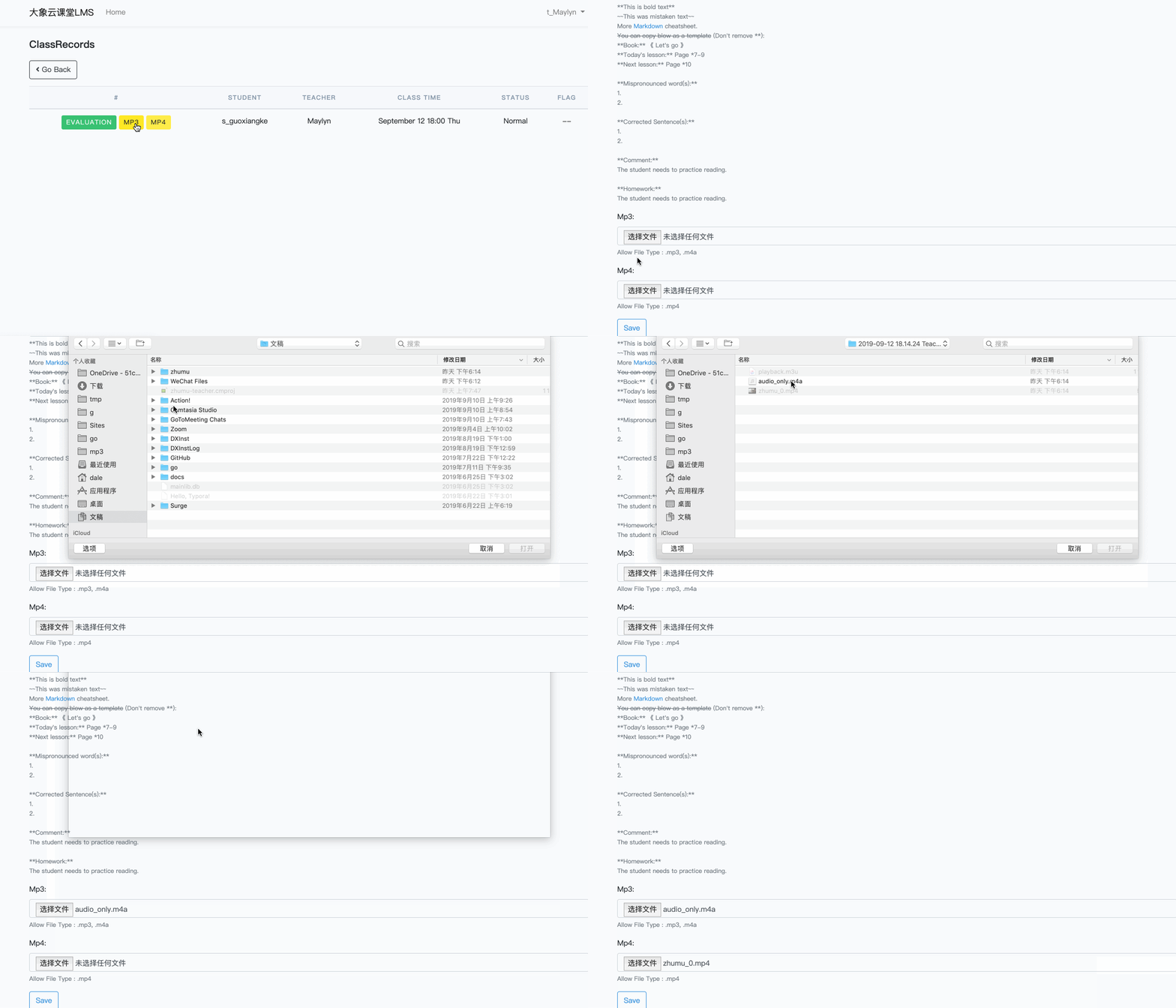
4.3 Upload by select files
4.4 Caution
Usually the zhumu_0 is the mp4, audio_only is the mp3. Don't upload the playback, it's the smallest. If there is interruption, you'll got more that 1 mp4s and mp3s, just upload the longer one.
⚠️ For it's need minutes to uploading, when you click the Save button, plz don't close the page, wait until the page auto-refresh or you see 100% precent.
5. How to flag
Click the Red buttons to change the ClassRecords flag status.
If the class is canceled or aol(we'll notice you before class) you can click AOL button.
If the regular student absent( wait for more than 15 minutes), click the absent button
If you AOL or having holidays, click the Holidays flag button.
Or you need to change all Yellow buttons to Green to Get Paid by doing step 3 and 4.